
GIVING BACK  |  WHAT'S GOING ON  |  JOIN US!  |  SIGN IN
logo
Sign In or Sign Up
  • GIVING BACK
  • WHAT’S GOING ON
  • JOIN US!
  • MEMBER SIGN IN

TECH TIP: Quick Links

March 1, 2019 by Tech Ops

Welcome to Tech Tips! In this monthly series, our Tech Ops team will share simple tips and techniques to help you get the most out of the Club's technology resources.

Who to Contact and other Quick Links

On the Newcomers Club home page, you will see a blue "Quick Links" section with several useful resources. They include links to:

  • Directory of Interest Groups
  • The Club Facebook page (requires that you join)
  • The Tech Tour page, including a blog of Tech Tips like this one
  • A directory of contacts for various club topics and questions

On the Who to Contact page, you will find links that will open your email client on your device. If this doesn't work correctly for you, please email tech@estesparknewcomers.org for help.

Also on that page, the Need To Contact A Board Member? link takes you to the directory of Newcomers Club Board members, with email addresses and phone numbers. You will need to be signed into the website as a member in order to view this directory.

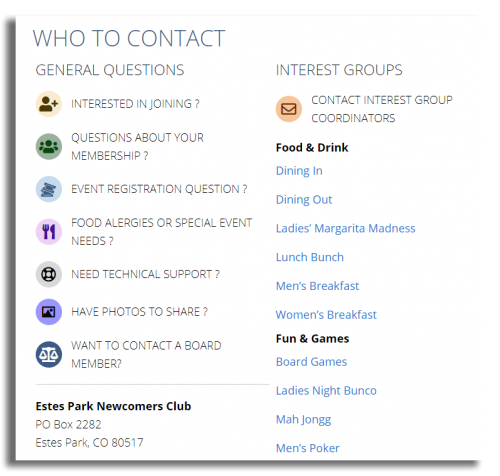
Quick Links
Who To Contact

If you have any questions, contact tech@estesparknewcomers.org.
Filed Under: News & Announcements Tagged With: Tech Tips

TECH TIP: Interest Groups Online

January 26, 2019 by Tech Ops

Welcome to Tech Tips! In this monthly series, our Tech Ops team will share simple tips and techniques to help you get the most out of the Club's technology resources.

Joining Interest Groups Online

Newcomers Club members have the opportunity to join other members in a wide selection of small group activities called Interest Groups. A listing of the Interest Groups can be found on the main Interest Group page. From there, simply click or tap on the photo or the group name to see more details about a particular group.

Note: In order to sign up for an Interest Group, you will need to be signed in to the website with your member account.

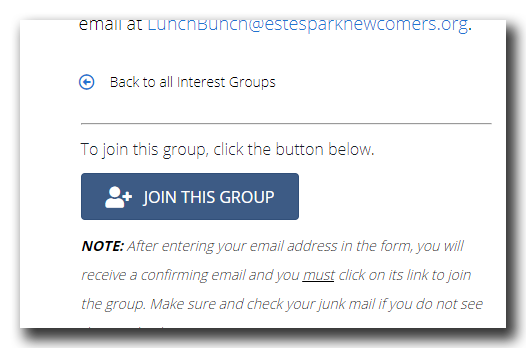
Once you're signed in, choose the desired group from the main Interest Group page. Towards the bottom, you will see a Join This Group button.

After you click the button, you will be asked to confirm your Gmail account (or enter a non-Google email address). Once you have completed that, you should receive email confirming that you have joined the group.

IG Screenshot

Participating In Interest Groups

Once you have joined, you should start receiving email notices from the group's leaders about upcoming gatherings.

You can reply to either the group leader, or reply-to-all for the entire group.

If you check the Club calendar, you will see scheduled Interest Group gatherings. Clicking any of those events, you will see the meeting time and place, along with additional info about that gathering.

If you decide to leave an Interest Group, simply unsubscribe from any email notice you receive. That notifies the leader, and removes you from their email distribution list automatically.

If you have any questions, contact tech@estesparknewcomers.org.
Filed Under: News & Announcements Tagged With: Tech Tips

TECH TIP: Using The Member Directory

January 9, 2019 by Tech Ops

Welcome to Tech Tips! In this monthly series, our Tech Ops team will share simple tips and techniques to help you get the most out of the Club's technology resources.

Using the Member Directory

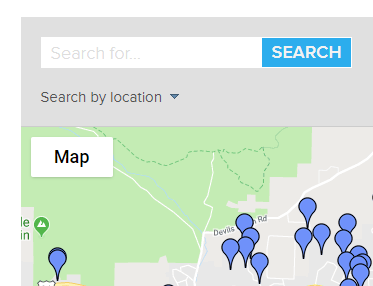
To view the online member directory, click OUR MEMBERS in the top menu (after signing in). Enter a first or last name (or the first few letters) in the search bar above the map, and then click SEARCH.

The matching members' names and addresses are listed below the map. You can click on a member in the search results list to see more details, including phone numbers and a link to send them an email message.

Search Form

Matching members are also indicated by pins on the map. If you click on a pin, you will see their name (and maybe a photo). If you then click on the name, you will see more details.

You can also use the Download Member Directory button in the upper right corner to obtain a PDF file containing all active members' contact information, including email addresses.

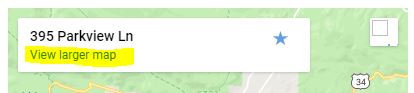
If you search the directory on a phone or tablet, you can use the view larger map link to get to a full size map where you can get driving directions and other information.

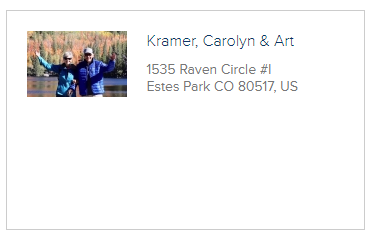
As you might notice, some of the directory entries include members' pictures. This is quite helpful in matching up names and faces. You can easily add a photo to your directory entry by going to the ABOUT YOU page, clicking the Directory tab, and following the directions in the Directory Photo box.

Member Card

If you have any questions, contact tech@estesparknewcomers.org.
Filed Under: News & Announcements Tagged With: Tech Tips

TECH TIP: Setting Up Contacts For Your Account

November 30, 2018 by Bob Fulton

Welcome to Tech Tips! In this monthly series, our Tech Ops team will share simple tips and techniques, to help you get the most out of the Club's technology resources.

Setting Up Contacts For Your Account

In our Newcomers Club, membership is at the household level; yearly membership dues are charged to the household, not to each individual.

This is also true in our web-based membership system: each household has a single account. Within each account, one login (email/password) is designated as the primary contact. The primary contact can perform account level administration, such as:

  • Pay membership dues online
  • Set the directory photo (encouraged!)
  • View the history of registrations and payments
  • Create additional contacts

However, all contacts, including the primary contact and any additional contacts, can perform many actions on the website, such as:

  • Register one or multiple attendees for events such as general meetings
  • Pay online for general meetings or special events
  • Sign up for interest groups
  • View the event calendar, the member directory and all other sections of the website

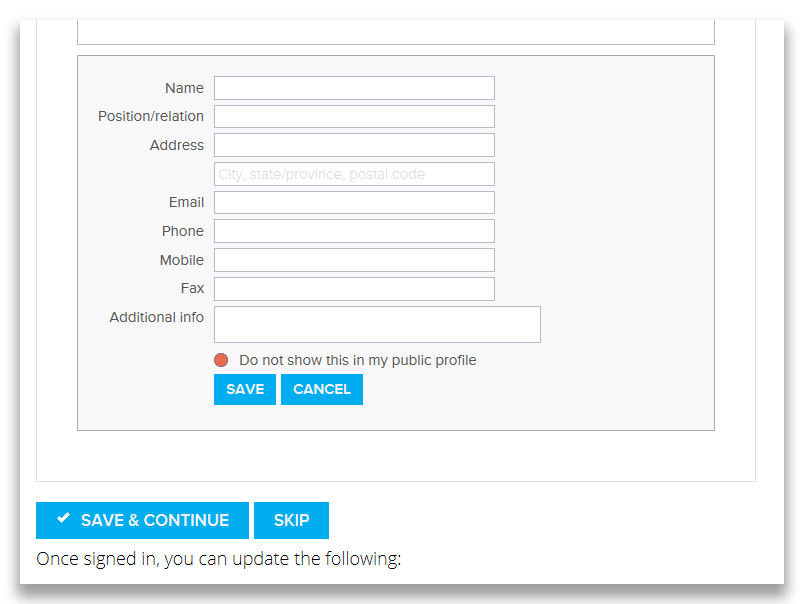
To create an additional contact, the primary contact can log into the website and perform the following steps:

  1. Go the ABOUT YOU page
  2. Click the Contacts tab
  3. Click Add New Contact
  4. Enter the contact's full Name and Email address
  5. Enter their Phone or Mobile number (optional) - all other fields should normally be left empty
  6. Clear the red circle to deselect Do not show this in my public profile (assuming that it's OK for other members to see this contact)
  7. Click SAVE
  8. Click SAVE & CONTINUE
Contact Screenshot

If you have any questions, or if you need to change the primary contact on your account, contact tech@estesparknewcomers.org.
Filed Under: News & Announcements Tagged With: Tech Tips

  • « Previous Page
  • 1
  • 2

Upcoming Events

  • Boardgame Night at The Legion
    Mon Jun 8 2026, 5:30pm MDT
  • Photographing Flowers & Springtime
    Tue Jun 9 2026
  • Lake Estes 9-hole Golf Course
    Tue Jun 9 2026
  • Museum and a Meal - Freedom Plane National Tour
    Thu Jun 11 2026, 8:00am MDT
  • WINE and CHEESE for JUNE!!
    Sat Jun 13 2026, 5:00pm MDT
  • Boardgame Night at The Legion
    Mon Jun 15 2026, 5:30pm MDT

Featured Interest Group

DISCOVER THE INTEREST GROUPS

Recent News

Newcomers Notes Feb 2 2026

TECH TIP: Who’s the Primary Contact?

TECH TIP: Check Spam for Newcomers Email

Estes Park Newcomers Club
PO Box 2282
Estes Park, CO 80517

QUESTIONS? WHO TO CONTACT

© Copyright 2019, Estes Park Newcomers Club
Site Powered by engageRE | © 2026 real.leads, inc. | Select images used with permission - © Can Stock Photo | WordPress Access | Agent Portal
Contact Trail Ridge Quilters
Contact Nominating Committee
Contact Book Club Coordinator
Contact Member Care
Contact Group It! Organizers
Contact Member Engagement
Contact Interest Groups
Submit Photo
Contact Tech Support
Contact Activities
Contact Community Outreach
Contact Membership
Contact Club Treasurer
Contact Event Registration
Contact Event Planning