

GIVING BACK  |  WHAT'S GOING ON  |  JOIN US!  |  SIGN IN
logo
Sign In or Sign Up
  • GIVING BACK
  • WHAT’S GOING ON
  • JOIN US!
  • MEMBER SIGN IN

TECH TIP: Who’s the Primary Contact?

July 1, 2023 by Tech Ops

Welcome to Tech Tips! In this series, our Technology team will share simple tips and techniques, to help you get the most out of the Club's technology resources.

Finding the Primary Contact for Your Account

In our Newcomers Club, membership is at the household level; yearly membership dues are charged to the household, not to each individual.

This is also true in our web-based membership system: each household has a single account. Within each account, one login (email/password) is designated as the primary contact. The primary contact can perform account level administration, such as:

  • Pay membership dues online
  • Set the directory photo (encouraged!)
  • View the history of registrations and payments
  • Create additional contacts

However, all contacts, including the primary contact and any additional contacts, can perform many actions on the website, such as:

  • Register one or multiple attendees for events such as general meetings
  • Pay online for general meetings or special events
  • Sign up for interest groups
  • View the event calendar, the member directory and all other sections of the website

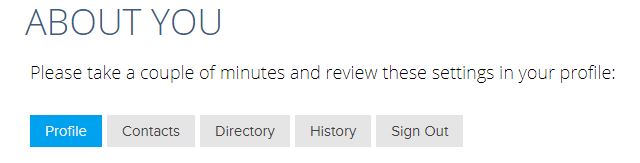
To determine whether you are the primary contact for your account, log into the website and go the ABOUT YOU page. If you see the following five buttons at the top of the page, you are the primary contact and can pay your dues.
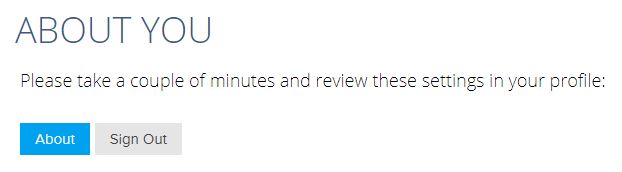
If you only see two buttons at the top of the page, like the screenshot below, someone else is the primary contact for your account.
If you have any questions, or if you need to change the primary contact on your account, contact tech@estesparknewcomers.org.
Filed Under: News & Announcements Tagged With: Tech Tips

TECH TIP: Check Spam for Newcomers Email

March 23, 2023 by Tech Ops

Welcome to Tech Tips! In this series, our Technology team will share simple tips and techniques, to help you get the most out of the Club's technology resources.

Check for Newcomers Group Emails in Spam Folder

Sometimes email messages from the Newcomers club, or from your Newcomers interest groups, may end up in your spam folder. Here are some tips for finding those emails and hopefully preventing them from being marked as spam. You may need to do this periodically.

First: check your spam (or junk) folder to see if there are any messages that are not actually spam. If you find some, mark them as "not spam". The specific process will vary depending on which email app (or website) you use. This should help get these messages delivered to your inbox in the future.

Also it often helps if you add the sender to your Contacts list in your email app.

Some email systems catch spam messages before they get delivered to your local email app, so they don't even make it to your local spam folder. We are aware that this can happen with Comcast email addresses, and Microsoft based email addresses like @hotmail.com, @live.com, @msn.com and @outlook.com.  In this case you will need to login to your web-based email server and check the spam or junk folder. See below for some specific instructions for Comcast and Microsoft based email servers:

Microsoft:

  • Log into your Microsoft account in a web browser by going to www.msn.com or https://outlook.live.com/
  • Open up your email
  • Find the email in your junk or spam folder
  • You should be able to right click and then select Not Junk
    • or there may be a note across the top of the message near the subject that says something like "This message was identified as junk."
  • Once you tell the system that a message isn't junk, it should pop up a window that says something like "Mark as not junk", at which point you click "OK".

Comcast:

  • Sign into your Comcast / Xfinity Email account from a computer
  • Select the Email icon
  • Select the Spam folder
  • Find and select the desired message
  • From the toolbar at the top, select the Not Spam button

Another option is to add the sender email address as a contact (again in the web portal) and that should automatically mark those emails as ok to deliver.

Comcast doesn’t allow you to white list email senders like other email providers. So that sort of limits any further options; if neither of these actions fix the delivery issue then you may need to call the Comcast's Security Assurance group at 1-888-565-4329.


If you have any questions, contact tech@estesparknewcomers.org.
Filed Under: News & Announcements Tagged With: Tech Tips

TECH TIP: How to Change Your Password

October 4, 2020 by Tech Ops

Welcome to Tech Tips! In this monthly series, our Tech Ops team will share simple tips and techniques to help you get the most out of the Club's technology resources.

Changing Your Password

In case you have had difficulty getting your website password changed, here are the instructions.

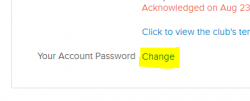
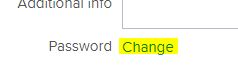
When you sign in and go to the "ABOUT YOU" page, it shows your profile and other account info. At the bottom of the box with your name and address, you will see the blue word "Change", as highlighted below in two possible layouts:

Highlighted word "Change"


Another password example

  1. Click the word "Change".
  2. Type a new password in the box that is displayed.
  3. Press the Enter key.
Voila! Your password should be changed. Be sure to remember your new password for the next time you log in to the website.

If you still have trouble getting your password changed, or if you have any other questions, contact tech@estesparknewcomers.org.

Filed Under: News & Announcements Tagged With: Tech Tips

TECH TIP: Viewing Your Account History

February 14, 2020 by Bob Fulton

Welcome to Tech Tips! In this monthly series, our Tech Ops team will share simple tips and techniques, to help you get the most out of the Club's technology resources.

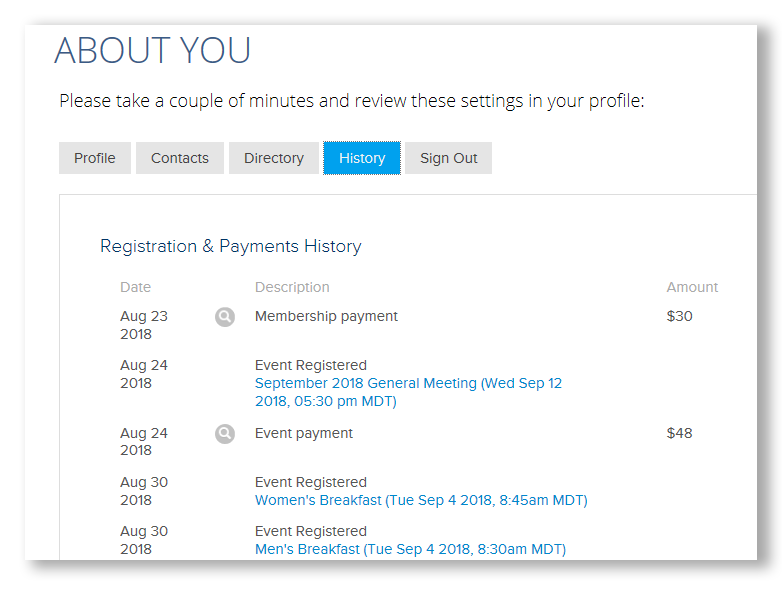
Check the History Tab To See If You're Already Registered For an Event

If you're not sure whether you registered for a general meeting or some other event, there is an easy way to check:

  1. Sign in to the website
  2. Click ABOUT YOU in the top menu
  3. Click the History tab
  4. Check the list of registrations and payments
History Screenshot

The most recent items are at the bottom of the list, so you may need to scroll down to find the event you're looking for. If you don't see "Event Registered" for the event you're wondering about, then you haven't yet registered. If you paid online for the event when you registered, then on the same date (the day you registered) you will see "Event payment" and the amount paid.

If you need any help with the website please contact tech@estesparknewcomers.org with your questions.

Filed Under: News & Announcements Tagged With: Tech Tips

TECH TIP: Interest Groups Online

October 1, 2019 by Bob Fulton

Welcome to Tech Tips! In this monthly series, our Tech Ops team will share simple tips and techniques to help you get the most out of the Club's technology resources.

Discover Interest Groups Online!

Interest Groups are one of the most popular and diverse of all the Newcomers activities. Watch this short video to learn how you can discover and join Interest Groups online.

Filed Under: News & Announcements Tagged With: Tech Tips

TECH TIP: Stay Up To Date With The Calendar

April 28, 2019 by Tech Ops

Welcome to Tech Tips! In this monthly series, our Tech Ops team will share simple tips and techniques to help you get the most out of the Club's technology resources.

Club Calendar: "What's Going On"

As you have probably seen, the "What's Going On" link at the top of any page will take you to the Club calendar of events.  Some tips about using the calendar:

  • As you scroll down the page, future months will automatically load into the display. However, if you want to review past events, you need to click the "Load Older" link at the top of the calendar.
  • You will notice that some types of events are displayed in a certain color. You can filter down to only a specific event category (e.g. General Meetings) by clicking the "Show" button at the top left and selecting the desired category.
  • And naturally, if you click on any event in the calendar, it will take you to a page with more information about that event.

If you have any questions, contact tech@estesparknewcomers.org.

Filed Under: News & Announcements Tagged With: Tech Tips

  • 1
  • 2
  • Next Page »

Upcoming Events

  • Boardgame Night at The Legion
    Mon Jun 8 2026, 5:30pm MDT
  • Photographing Flowers & Springtime
    Tue Jun 9 2026
  • Lake Estes 9-hole Golf Course
    Tue Jun 9 2026
  • Museum and a Meal - Freedom Plane National Tour
    Thu Jun 11 2026, 8:00am MDT
  • WINE and CHEESE for JUNE!!
    Sat Jun 13 2026, 5:00pm MDT
  • Boardgame Night at The Legion
    Mon Jun 15 2026, 5:30pm MDT

Featured Interest Group

DISCOVER THE INTEREST GROUPS

Recent News

Newcomers Notes Feb 2 2026

Interest Group Activities

Interest Groups – How To Sign Up

Estes Park Newcomers Club
PO Box 2282
Estes Park, CO 80517

QUESTIONS? WHO TO CONTACT

© Copyright 2019, Estes Park Newcomers Club
Site Powered by engageRE | © 2026 real.leads, inc. | Select images used with permission - © Can Stock Photo | WordPress Access | Agent Portal
Contact Trail Ridge Quilters
Contact Nominating Committee
Contact Book Club Coordinator
Contact Member Care
Contact Group It! Organizers
Contact Member Engagement
Contact Interest Groups
Submit Photo
Contact Tech Support
Contact Activities
Contact Community Outreach
Contact Membership
Contact Club Treasurer
Contact Event Registration
Contact Event Planning